Published by PitchChanger · Updated · How these guides are made
Hear the difference
Compare an original A–B–C tone fixture with the actual A–C export. A is low, B is in the middle, and C is high in pitch.
Pause your workspace preview before comparing these clips.
Original synthesized tones, not a song or voice recording. The result was exported through Audio Cutter with 0 ms crossfade on 2026-10-17.
How to use this workflow
Import one recording and mark both boundaries
Open Audio Cutter and choose your local audio file. Listen for the start and end of the passage to remove. For the downloadable A–B–C example, those original-file positions are 2.000 and 4.000 seconds.
Split before deleting anything
Set Output cursor (ms) to 2000 and press Split (S). Set it to 4000 and split again. Because nothing has been deleted or moved yet, these output positions still match the source positions.
Select the middle segment and delete it
Select Segment 2, which lasts 2.000 seconds in this example. Check that Segment source interval reads 2.000–4.000s, then press Delete. The two remaining segments should each last two seconds.
Preview the join, then download
Leave Crossfade at 0 ms for the exact example. Press Preview joined audio, listen across the join at two seconds, and use Download WAV. Keep the original file separately so you can revise the cut.
Mark two source boundaries before removing the middle passage
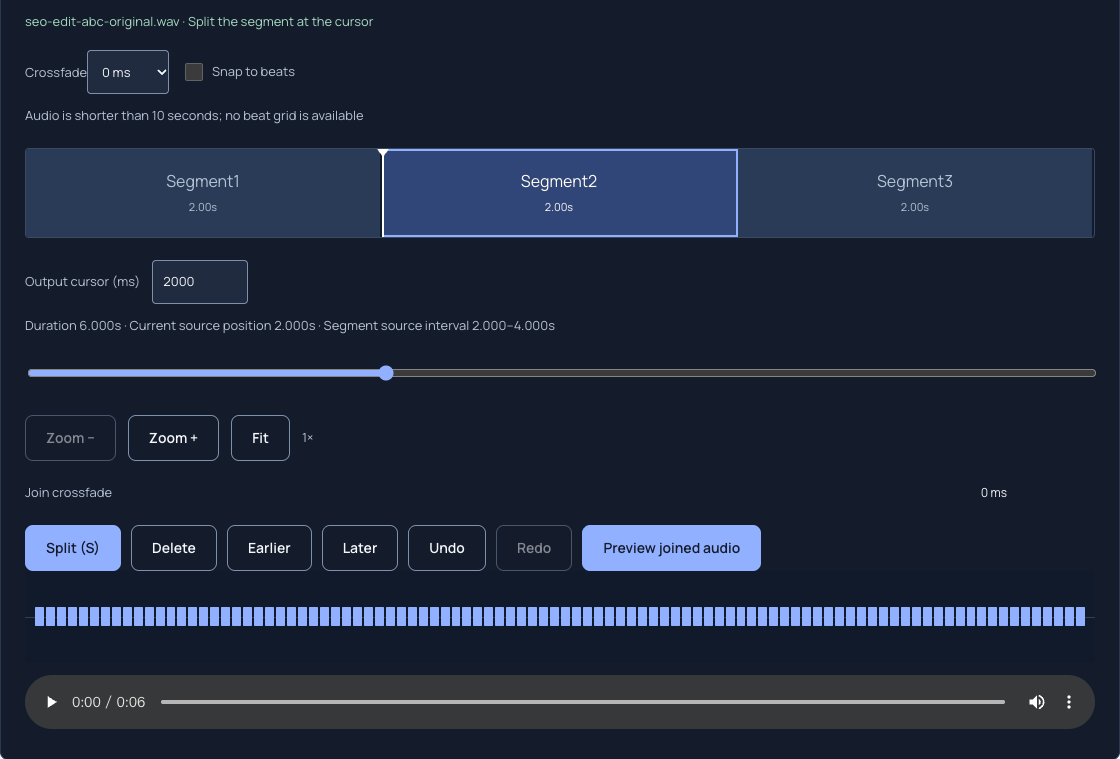
The original fixture contains three separate synthesized tones. They stand in for three passages of one recording; they are not speech, a song or a performer recording. Different frequencies make the retained order easy to identify.
Split the end boundary while the middle passage is still present. If you delete first, the following audio shifts earlier in the output. Use Current source position and Segment source interval to distinguish that edited timeline from the original recording.
Swipe or scroll sideways to read all columns.
| Source passage | Original interval | Tone | Action |
|---|---|---|---|
| A | 0.000–2.000 s | 220 Hz | Keep |
| B | 2.000–4.000 s | 440 Hz | Delete |
| C | 4.000–6.000 s | 660 Hz | Keep |
Measured result: six seconds become four
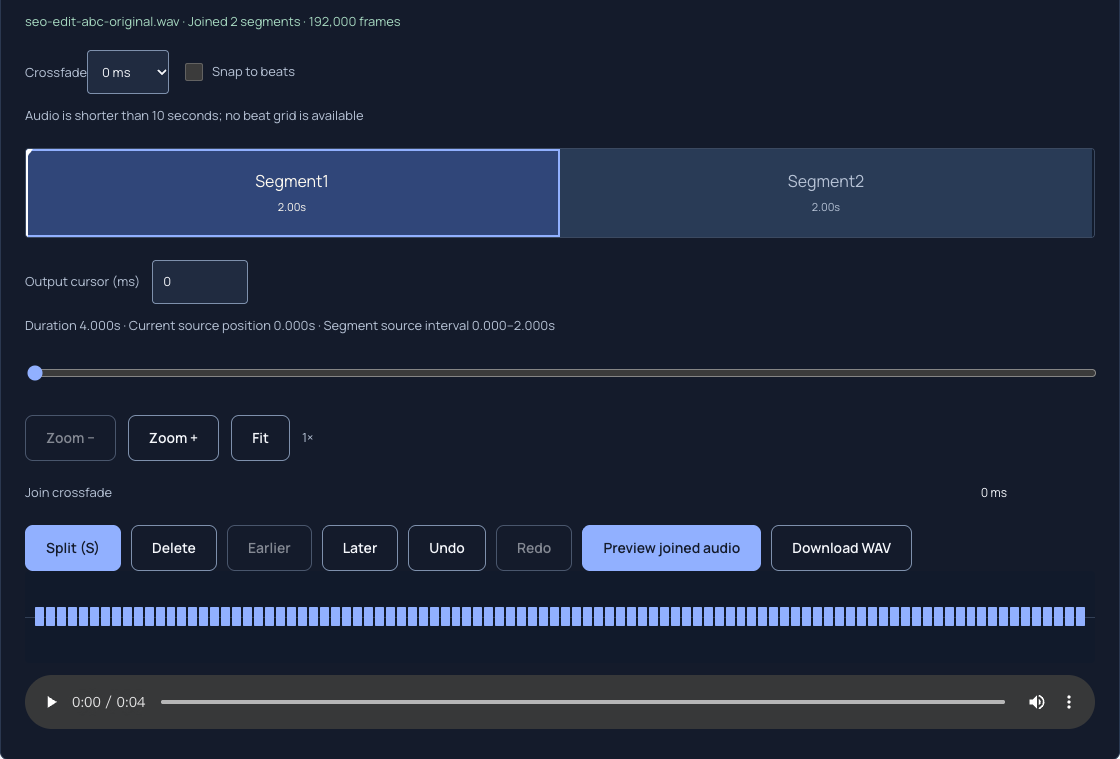
The real Audio Cutter exported the retained A and C passages as a 48 kHz, mono, 16-bit PCM WAV. The output contains 192,000 frames, or exactly 4.000 seconds. Its decoded sample sequence matches the original 0–2 and 4–6 second intervals exactly in this controlled run.
The duration calculation is separate from that measurement: 6 − (4 − 2) = 4 seconds. Matching duration alone would not prove the right segment was removed; the sample-order check verifies what remained.
Swipe or scroll sideways to read all columns.
| Check | Original | After deleting B |
|---|---|---|
| Duration | 6.000 s | 4.000 s |
| Frames at 48 kHz | 288,000 | 192,000 |
| Passage order | A → B → C | A → C |
| Crossfade | Not applicable | 0 ms |
Inspect the new join before choosing a crossfade
A correct deletion can still create an awkward musical or spoken transition. Listen just before and after the join: check for a cut syllable, missing breath, clipped attack or abrupt level change. The gentle edges of this synthetic fixture do not establish that an arbitrary voice or song edit will be inaudible.
Start with 0 ms so you can hear the cut itself. The available crossfades are 10, 30, 50, 100 and 200 ms. They use source audio around the cut points, which can include neighboring material you intended to remove. Keep a margin around an unwanted word and check the exported result instead of assuming a crossfade erases it.
Recover from a wrong boundary or deletion
Use Undo if the selected segment was not the intended passage. Before deleting again, inspect its source interval; the segment number can change as the sequence changes. Earlier and Later reorder a selected segment, so they are not needed for this removal task.
Changing the segment sequence invalidates a previously prepared result. Press Preview joined audio again before judging or downloading the revised version. For a difficult boundary, use Zoom + and the numeric cursor together; zoom reaches 16×.
When this workflow fits—and when another editor is needed
Audio Cutter edits segments from one local file. It does not import several independent files into a multitrack arrangement, automatically detect unwanted silence, or export MP3 directly. Export WAV first and use Audio Converter if MP3 is the delivery requirement.
The six-second fixture has no beat grid because it is shorter than ten seconds. On longer material, snapping still requires a reliable BPM and offset; leave it off when it does not suit a spoken-word boundary. Inputs must be nonempty and no larger than 250 MB, and decoding and available memory impose additional limits.
Common questions
Why is the second boundary no longer at the same time after a deletion?
The cursor addresses the current output sequence. Removing two seconds shifts later material two seconds earlier in that sequence. The original source positions are still shown separately. Make both splits before deleting, or use the displayed source interval to check later edits.
Does the cutter leave a silent gap where the middle passage was?
No. Deleting a segment joins the retained segments into the output sequence. In the measured example, removing the two-second B passage reduces the result from six seconds to four. Listen to the new join because closing the time gap does not guarantee a natural transition.
Can I remove a mistake and save MP3 immediately?
The cutter downloads WAV. After checking that file, open Audio Converter and explicitly choose MP3. Keeping the WAV edit and the untouched original gives you a useful intermediate and a way to revise the boundary without repeating edits on a compressed copy.