Published by PitchChanger · Updated · How these guides are made
How to use this workflow
Inspect the original before converting
Use your player’s file information or a local media inspector. Look for codec, sample rate, channel count and duration, rather than relying on the extension.
Separate source facts from output choices
If you use a local FFprobe installation, inspect the first audio stream with: ffprobe -v error -select_streams a:0 -show_entries stream=codec_name,sample_rate,channels,duration -of json "your-file.m4a".
Choose a destination format
Open Audio Converter only after deciding what the next player or editor accepts. Choose ALAC for a lossless M4A output or AAC for a lossy M4A output, then check the saved file again.
Two files with the same extension and different codecs
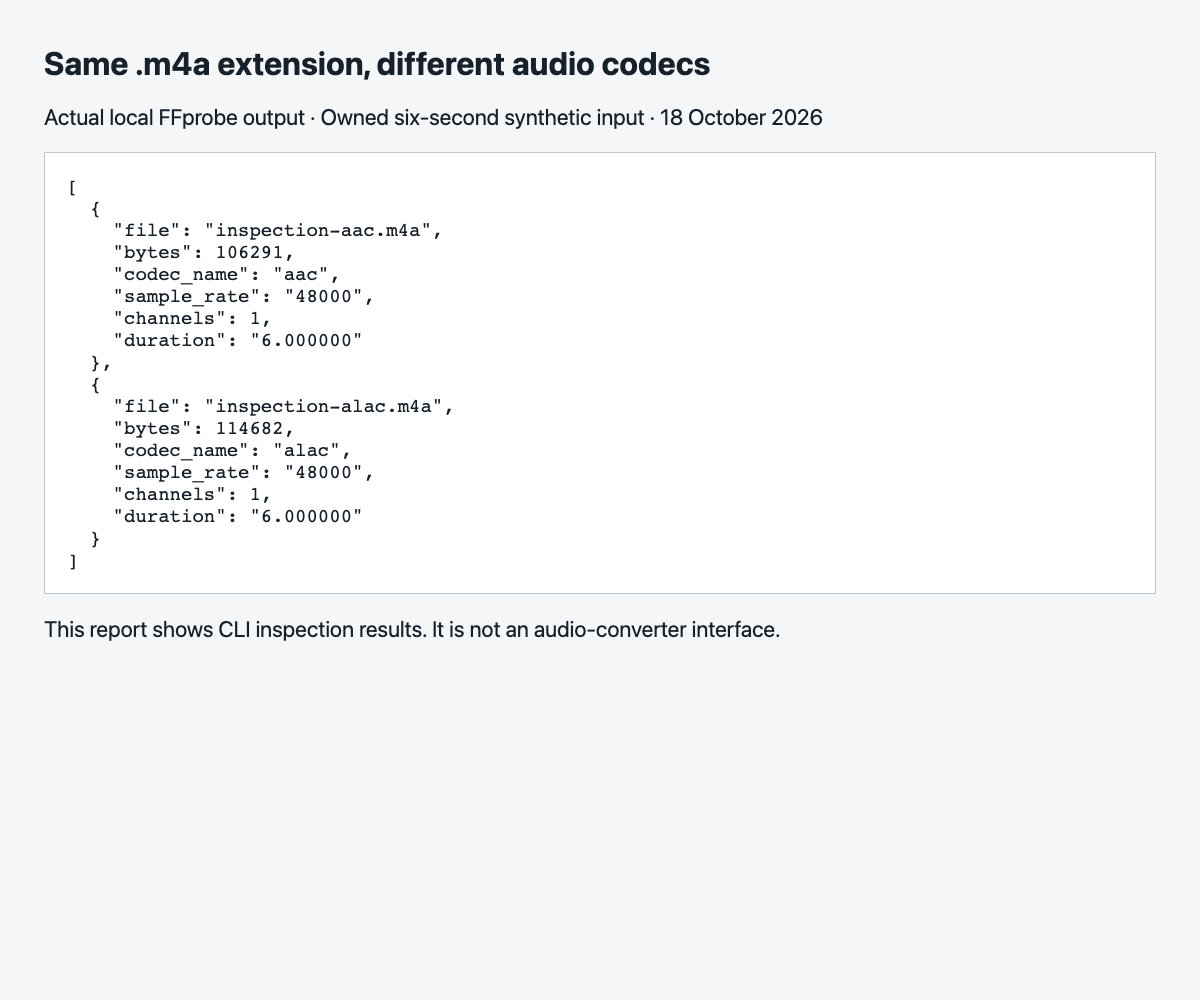
We encoded the original six-second three-tone WAV twice using local FFmpeg: once with the AAC encoder at a requested 192 kbps and once with ALAC. FFprobe inspected the resulting first audio streams. This is a controlled CLI comparison; it is not a claim about every M4A file or a browser export.
Swipe or scroll sideways to read all columns.
| Owned fixture | Reported codec | Rate | Channels | File size |
|---|---|---|---|---|
| inspection-aac.m4a | aac | 48,000 Hz | Mono | 106,291 bytes |
| inspection-alac.m4a | alac | 48,000 Hz | Mono | 114,682 bytes |
Read the fields without inferring missing quality
codec_name identifies the encoded stream. sample_rate counts audio samples per second, while channels describes channel count. duration describes the stream’s reported timing. File size includes container and metadata overhead as well as audio packets.
The AAC fixture was encoded at a requested bitrate, not a promise that its bytes divided by six seconds equal exactly 192 kbps. Simple tones also compress differently from dense music. These file sizes are examples, not a universal AAC-versus-ALAC size ratio.
Choose conversion according to the next task
If the original is ALAC and the recipient accepts it, keeping it avoids an unnecessary conversion. A WAV may suit an editing handoff when the recipient requests PCM. If the source is AAC, converting to WAV or ALAC can avoid another lossy encode in the next edit, but it cannot restore information already discarded.
PitchChanger’s converter offers AAC and ALAC as separate format choices; both use the .m4a extension. Its conversion is not an in-page codec-inspection tool. Use the external inspector to verify source and destination instead of expecting the upload filename to reveal the codec.
If an M4A file still will not open
Check whether the inspector can read a valid audio stream and whether the destination supports that codec. Keep the original while trying one short conversion. A protected or damaged file needs its own diagnosis; changing .m4a to .mp3 does not make its packets MP3.
The samples linked below are owned, unprotected test fixtures. They do not establish playback compatibility on every browser or mobile device. Use the target player to check the final file.
Common questions
Is every M4A file lossless?
No. The extension can accompany AAC or ALAC, among other file-specific details. Inspect the codec rather than assuming lossless audio from the name.
Will converting AAC to ALAC improve its original fidelity?
It does not restore discarded source information. Lossless storage can preserve the decoded audio for later use while avoiding another lossy generation.